---
title: "Optimizing network performance: Speed tests, scans, and diagnostics for MR40 routers"
description: "Optimizing Network Performance: Speed Tests, Scans, and Diagnostics for MR40 Routers"
---
[Skip to content](https://care.iqsim.com/en/knowledge-base/optimizing-network-performance-speed-tests-scans-and-diagnostics-for-mr40-routers-#main-content)
English
Show submenu for translations
Stay Connected
Open main navigation
Close main navigation
- English
Show submenu for translations
- Contact us
Contact us
How can we help you?
- There are no suggestions because the search field is empty.
1. [IQsim](https://care.iqsim.com/en/knowledge-base?hsLang=en)
2. [Troubleshooting](https://care.iqsim.com/en/knowledge-base/troubleshooting?hsLang=en)
# Optimizing network performance: Speed tests, scans, and diagnostics for MR40 routers
**Running a Speed Test**
1. Open the Speed Test History tab.
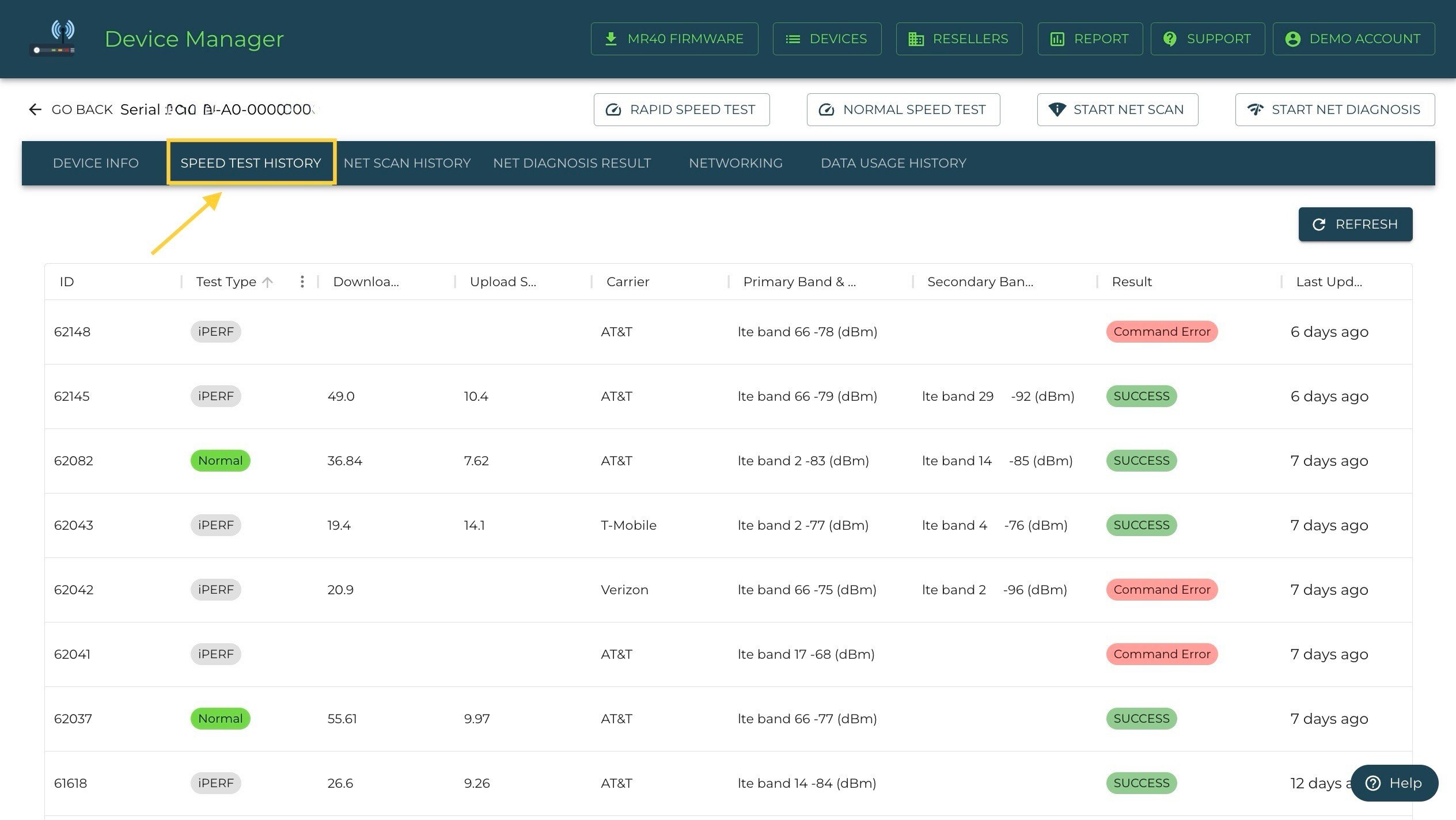
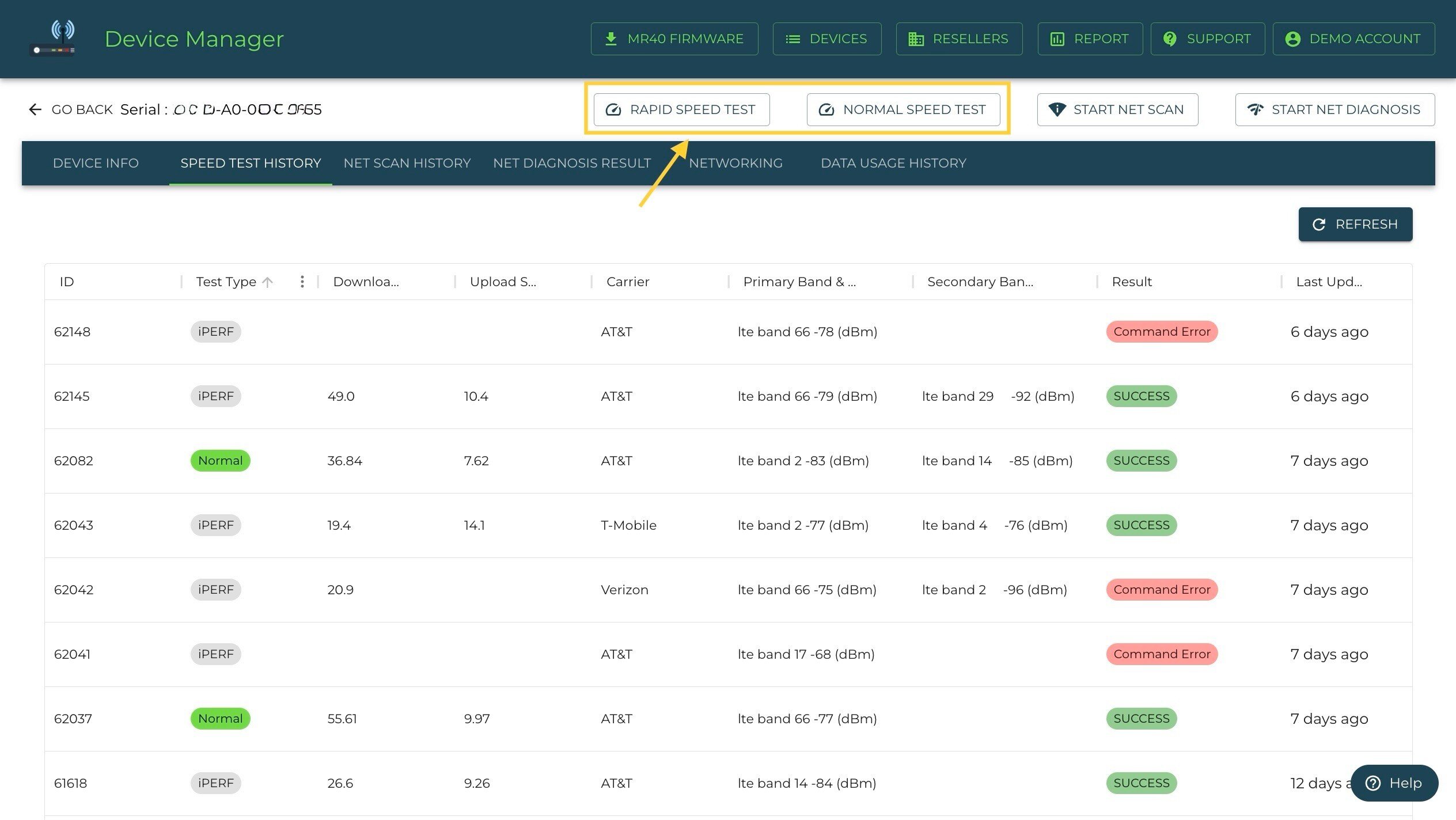
2. Choose between:
- Normal Speed Test (Standard test).
•Rapid Speed Test (IPERF) (Faster and more efficient).
3. View test details:
•Download/Upload speeds
•Carrier & LTE bands
•Test timestamp
4.Compare results to track network performance over time.
**Running a Network Scan**
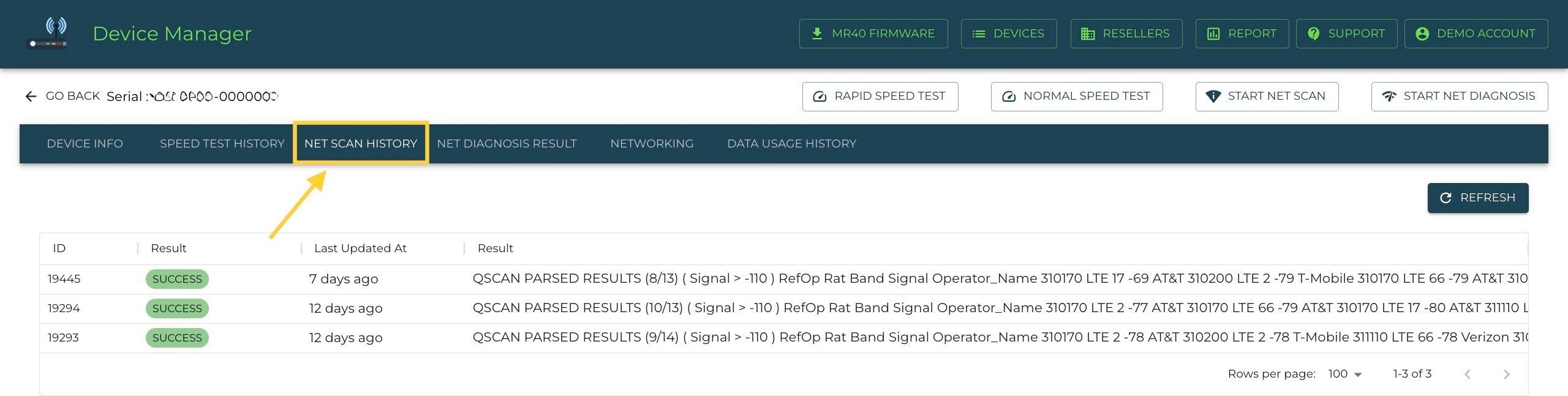
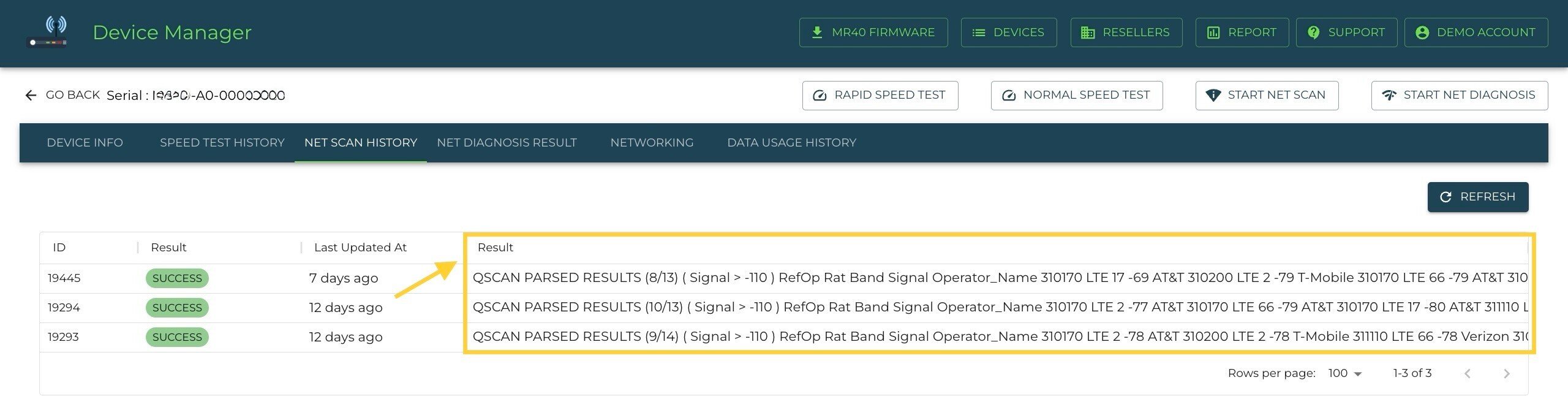
1.Open the Net Scan History tab.
2.Click Start Net Scan.
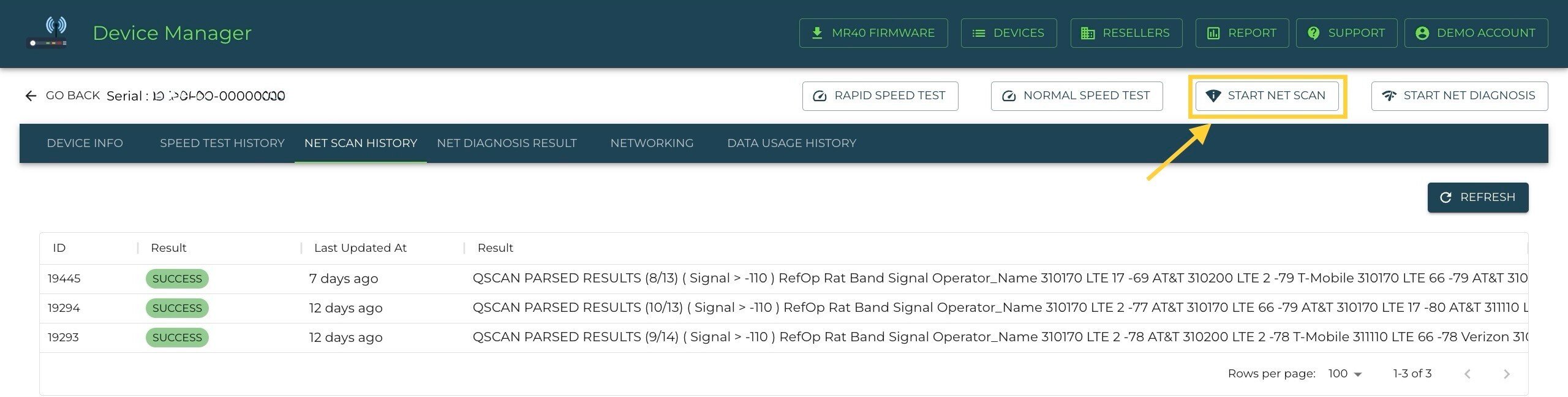
3.Wait 3-4 minutes for the scan to complete.
4.Click on a specific scan result to view:
•Detected Networks
•Signal Strength (dBm)
•Reference Operator & RAT
5.Use the results to adjust network settings for optimal performance.
**Running a Network Diagnosis**
1.Open the Network Diagnostics tab.

2.Click Start Net Diagnosis.

3.One you click Start Net Diagnosis a pop up will appear allowing you to choose between:
•RT Detailed (Full network analysis)
•RT Fast (Quick check)
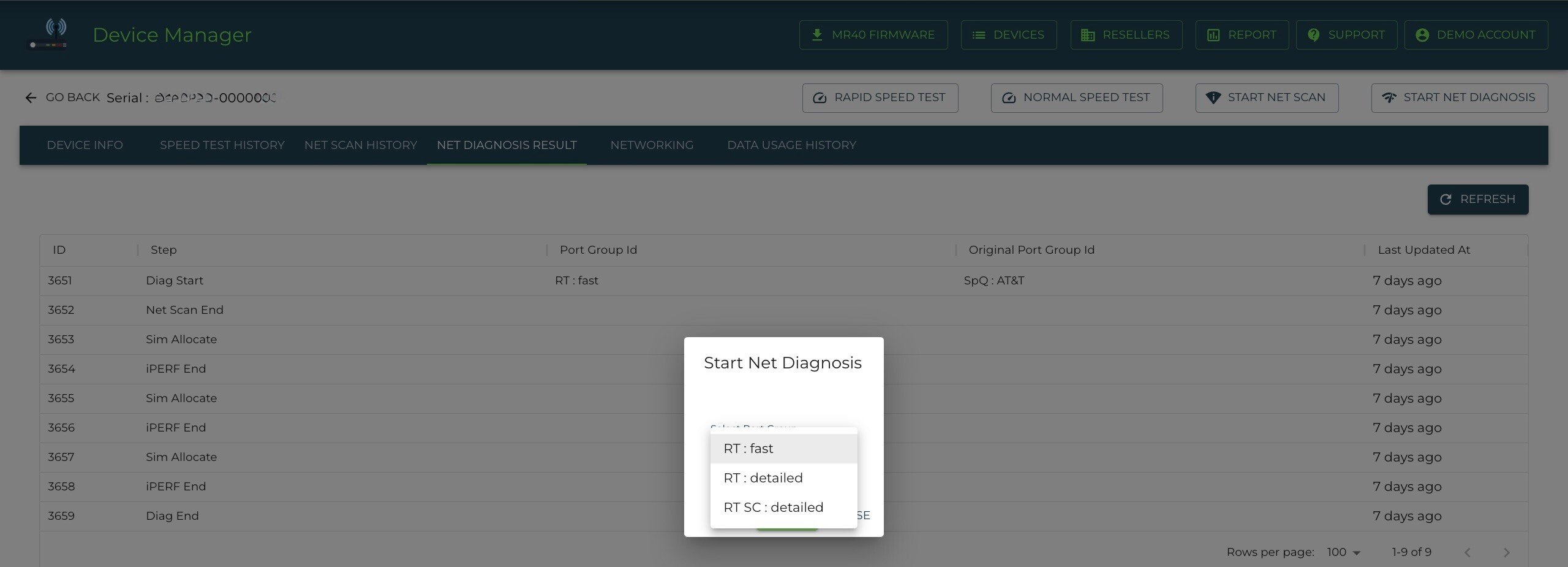
4.Click Start to begin diagnostics.
5.The tool will:
•Scan available networks.
•Run speed tests.
•Identify the best carrier & band for the device.
6.Results are logged in the Speed Test History for future reference.
- [Getting started](https://care.iqsim.com/en/knowledge-base/getting-started?hsLang=en)
- [FAQs](https://care.iqsim.com/en/knowledge-base/faqs?hsLang=en)
- [Troubleshooting](https://care.iqsim.com/en/knowledge-base/troubleshooting?hsLang=en)
- [Billing/Plans/Subscriptions](https://care.iqsim.com/en/knowledge-base/billing-plans-subscriptions?hsLang=en)
- [Accounts](https://care.iqsim.com/en/knowledge-base/accounts?hsLang=en#main-content)
- [Connecten Internet](https://care.iqsim.com/en/knowledge-base/accounts?hsLang=en#connecten-internet)
# Stay Connected
[mailto:email@email.com](mailto:email@email.com)
Copyright © 2026, Stay Connected